> ## Documentation Index
> Fetch the complete documentation index at: https://docs.budecosystem.com/llms.txt
> Use this file to discover all available pages before exploring further.
# Quick Start
> Create your first provider credential and project API key
This guide walks you through the fastest path to set up access: create a provider credential, then create a project key.
```mermaid theme={null}
flowchart LR
A[Open API Keys] --> B[Create Provider Credential]
B --> C[Verify Credential Drawer]
C --> D[Create Project Key]
D --> E[Validate Expiry + Budget]
```
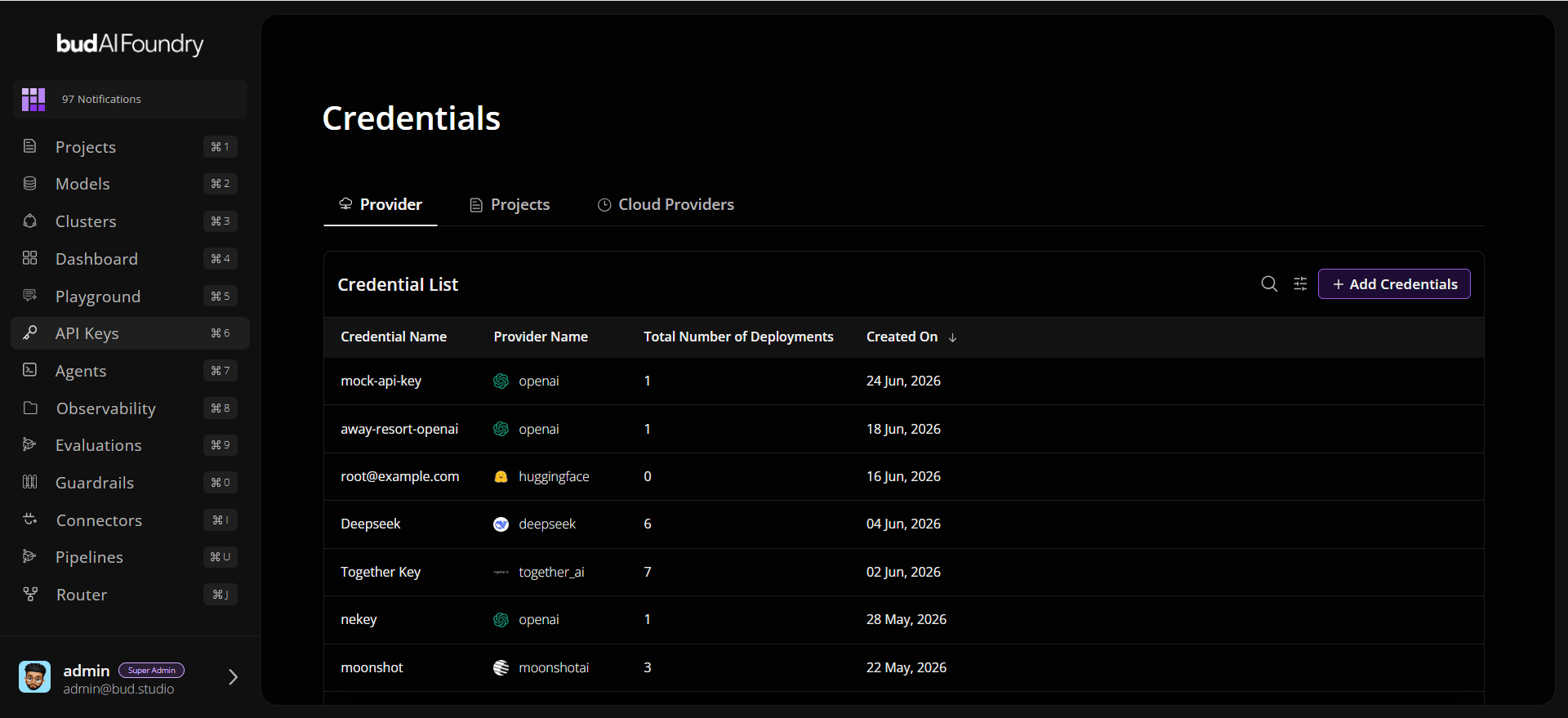
## Step 1: Open API Keys
1. Sign in to Bud AI Foundry.
2. Open **API Keys** from the left navigation.
3. Confirm you can see **Provider**, **Projects and Cloud Providers** tabs.
 ## Step 2: Create a Provider Credential
1. In **Provider**, click **Add Credentials**.
2. Choose a provider from the provider list.
3. Click **Next**.
4. Enter:
* **API key name**
* Provider-required fields (for example API key, base URL, org/project fields if required)
5. Click **Create**.
## Step 2: Create a Provider Credential
1. In **Provider**, click **Add Credentials**.
2. Choose a provider from the provider list.
3. Click **Next**.
4. Enter:
* **API key name**
* Provider-required fields (for example API key, base URL, org/project fields if required)
5. Click **Create**.
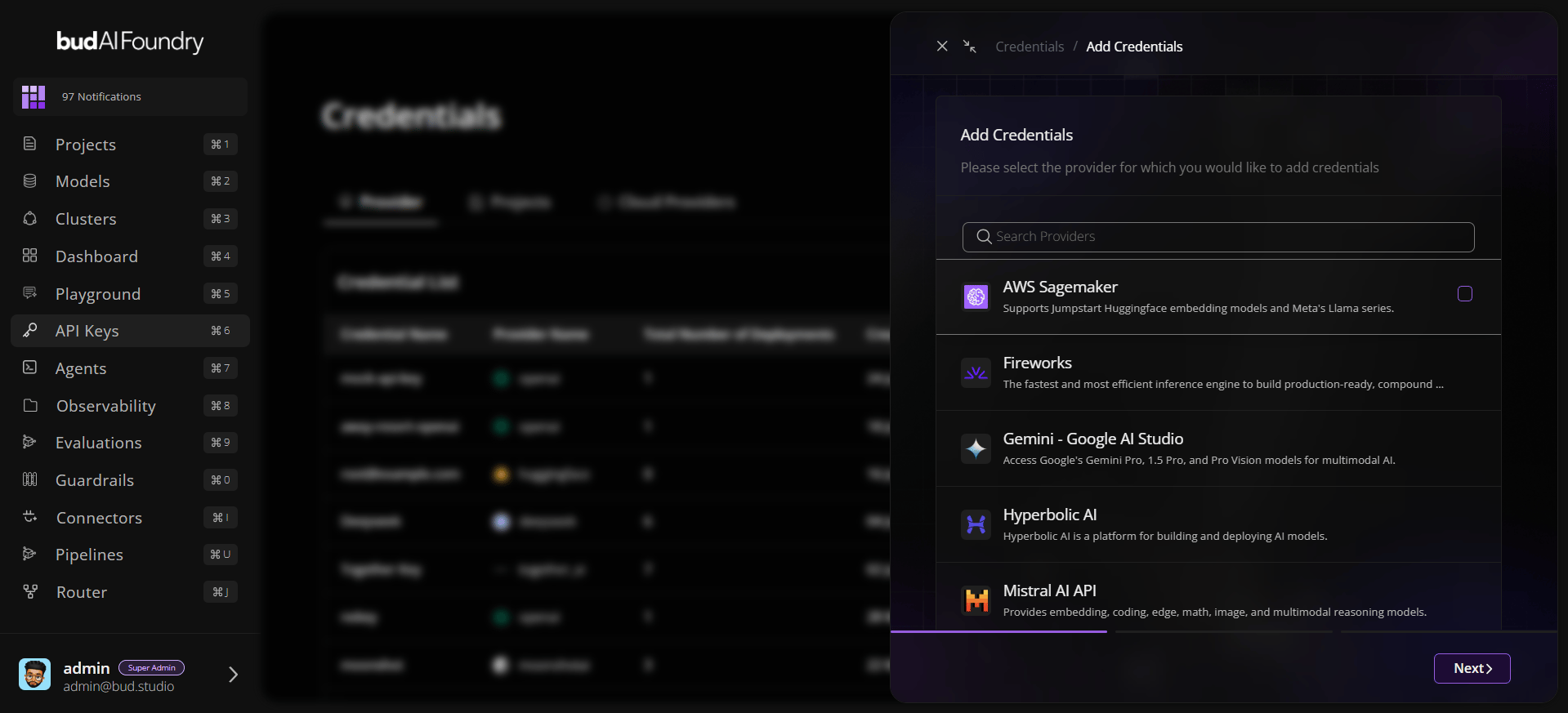 Provider form fields are dynamic and come from the selected provider schema, so fields can differ by provider.
## Step 3: Validate Credential Details
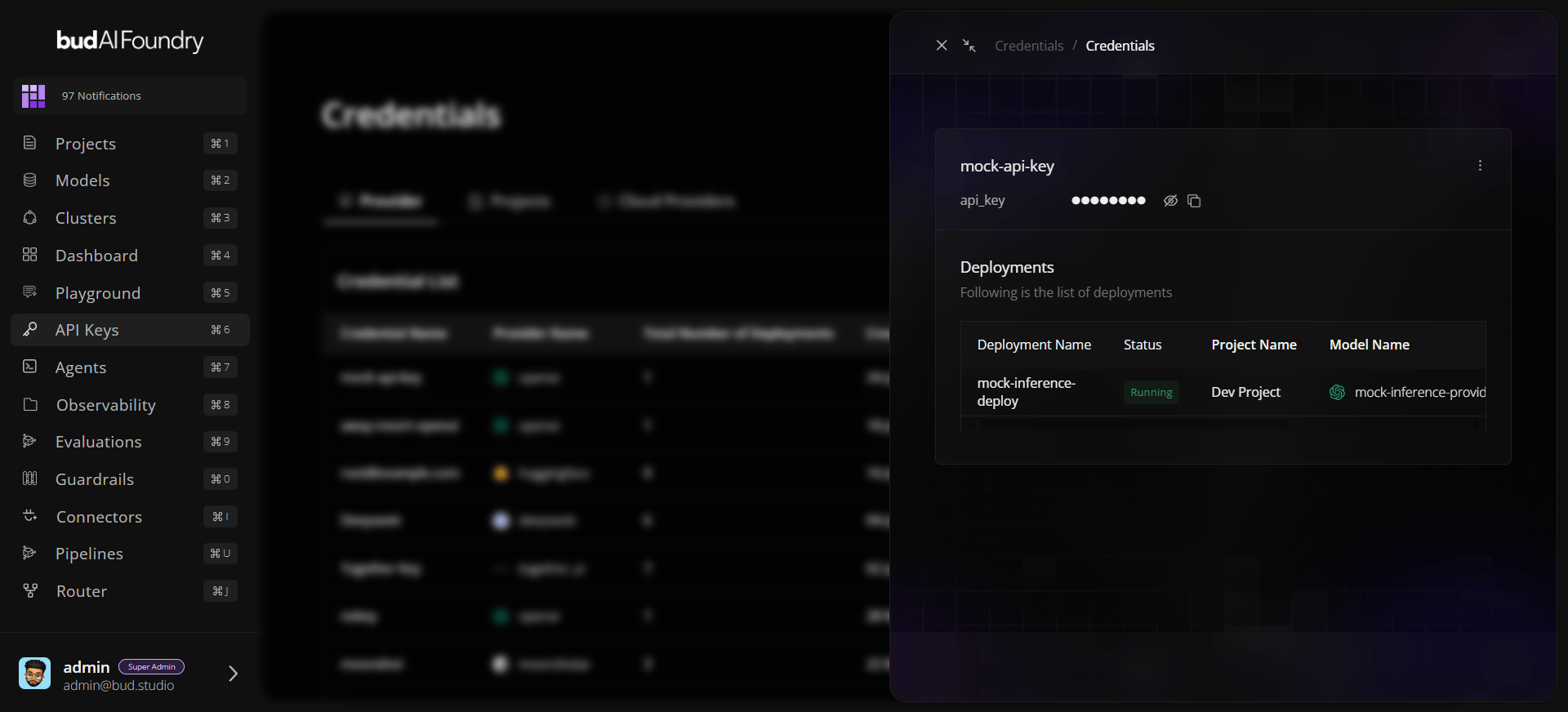
1. Open the created row in **Credential List**.
2. In the drawer, verify secret fields are masked by default.
3. Use the eye icon to reveal values only when necessary.
4. Use copy action to copy individual credential values.
Provider form fields are dynamic and come from the selected provider schema, so fields can differ by provider.
## Step 3: Validate Credential Details
1. Open the created row in **Credential List**.
2. In the drawer, verify secret fields are masked by default.
3. Use the eye icon to reveal values only when necessary.
4. Use copy action to copy individual credential values.
 ## Step 4: Create a Project API Key
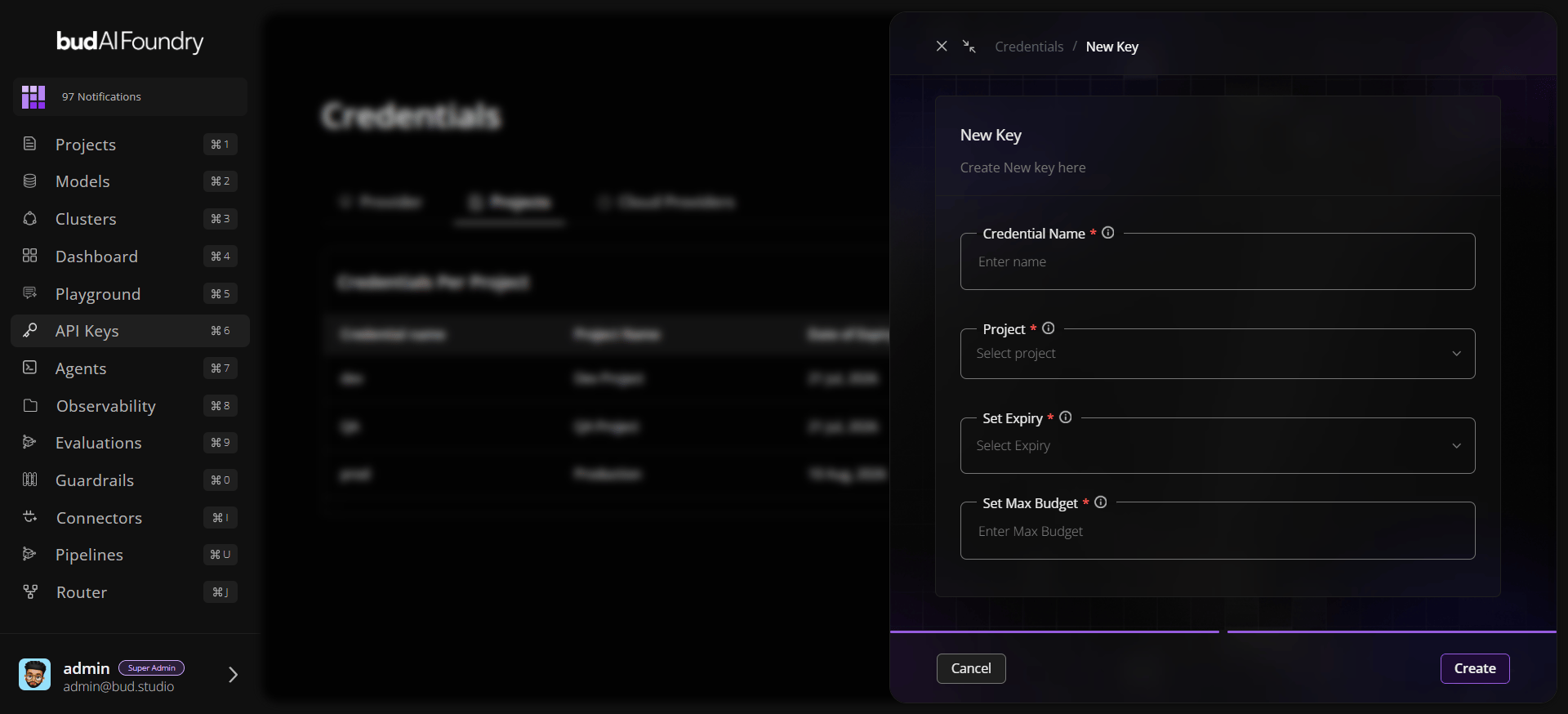
1. Switch to the **Projects** tab.
2. Click **Create New Key**.
3. Set:
* **Credential Name**
* **Project**
* **Set Expiry** (`30 days` or `60 days`)
* **Set Max Budget**
4. Click **Create**.
## Step 4: Create a Project API Key
1. Switch to the **Projects** tab.
2. Click **Create New Key**.
3. Set:
* **Credential Name**
* **Project**
* **Set Expiry** (`30 days` or `60 days`)
* **Set Max Budget**
4. Click **Create**.
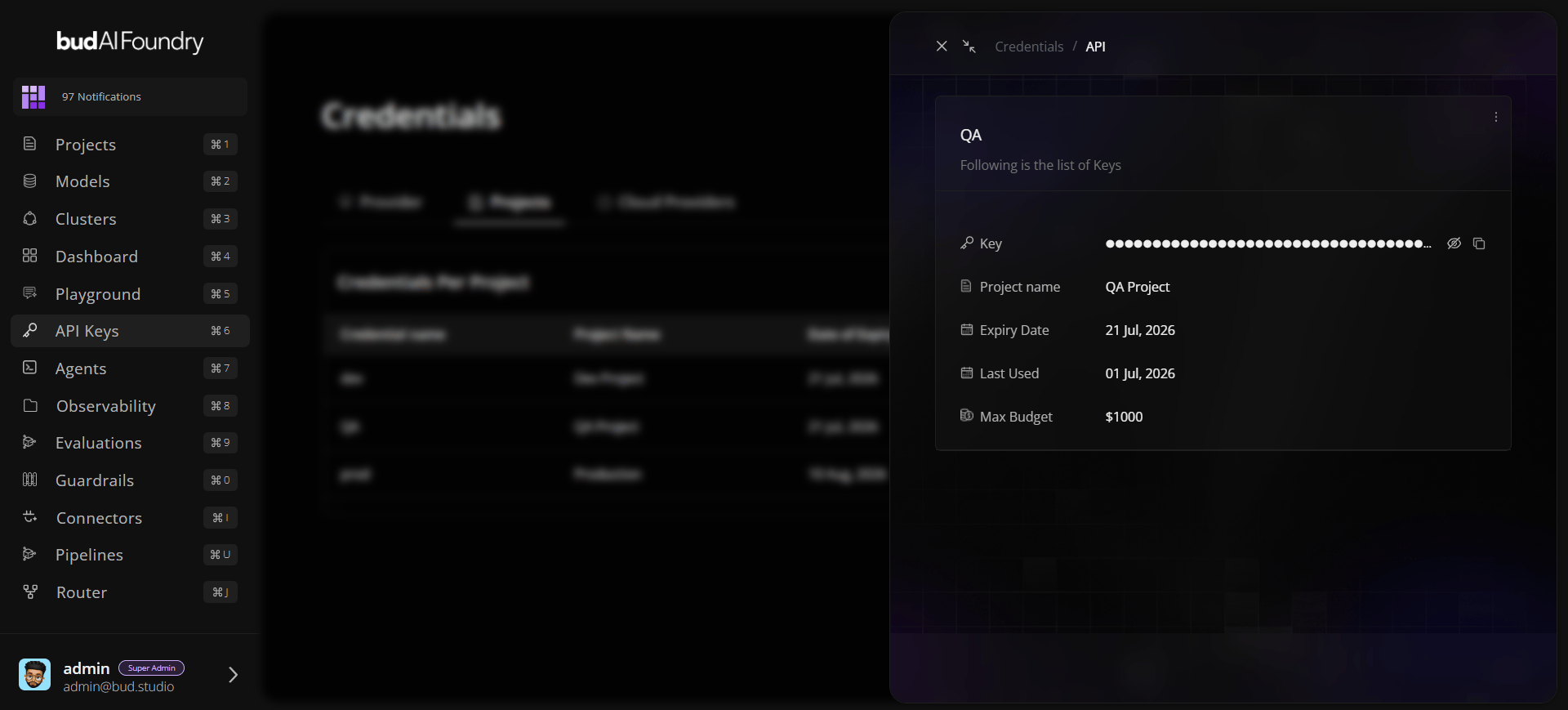
 ## Step 5: Confirm Governance Fields
Open the new project key row and verify:
* Key is masked by default
* **Project name** is correct
* **Date of Expiry** is correct
* **Max Budget** is applied
* **Last Used** updates once the key is consumed
## Step 5: Confirm Governance Fields
Open the new project key row and verify:
* Key is masked by default
* **Project name** is correct
* **Date of Expiry** is correct
* **Max Budget** is applied
* **Last Used** updates once the key is consumed
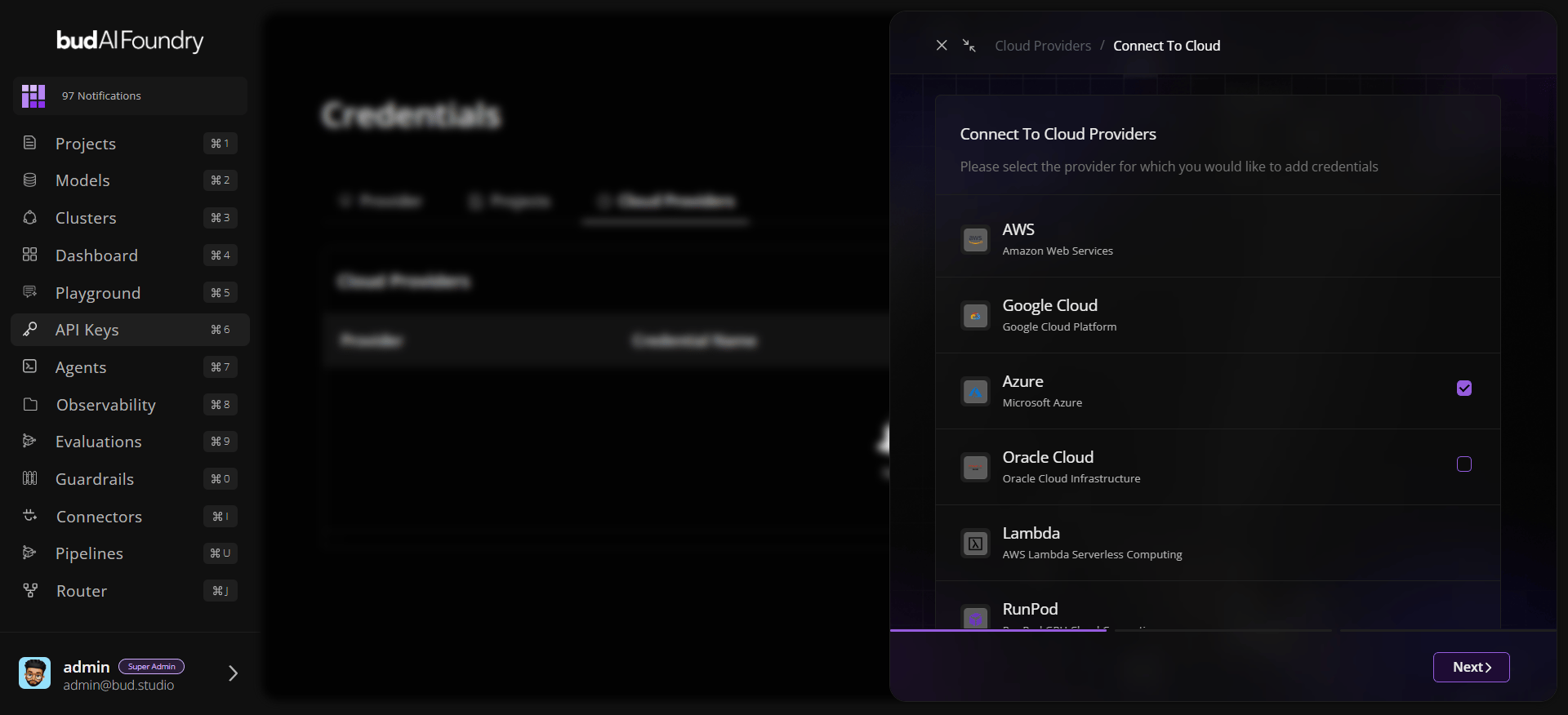
 ## Step 6: Connect a Cloud Provider Credential
1. In Cloud **Providers**, click **Connect To Cloud**.
2. Choose a provider from the provider list.
3. Click **Next**.
4. Enter Provider credentials.
5. Click **Create**.
## Step 6: Connect a Cloud Provider Credential
1. In Cloud **Providers**, click **Connect To Cloud**.
2. Choose a provider from the provider list.
3. Click **Next**.
4. Enter Provider credentials.
5. Click **Create**.
 ## Step 7: Validate Credential Details
1. Open the created row in **Credential List**.
2. In the drawer, verify secret fields are masked by default.
## Next Steps
Learn key types and governance design.
Follow a full production-ready workflow.
Apply secure handling and rotation controls.
## Step 7: Validate Credential Details
1. Open the created row in **Credential List**.
2. In the drawer, verify secret fields are masked by default.
## Next Steps
Learn key types and governance design.
Follow a full production-ready workflow.
Apply secure handling and rotation controls.