> ## Documentation Index
> Fetch the complete documentation index at: https://docs.budecosystem.com/llms.txt
> Use this file to discover all available pages before exploring further.
# Account Settings
> Manage your password, profile, and account preferences
# Account Settings
Manage your personal account settings, update your profile, and configure your preferences on the Bud Stack platform.
## Accessing Account Settings
To access your account settings:
1. Log in to your Bud AI Foundry
2. Click on your profile icon or name in the top-right corner
3. Select "Account Settings" from the dropdown menu
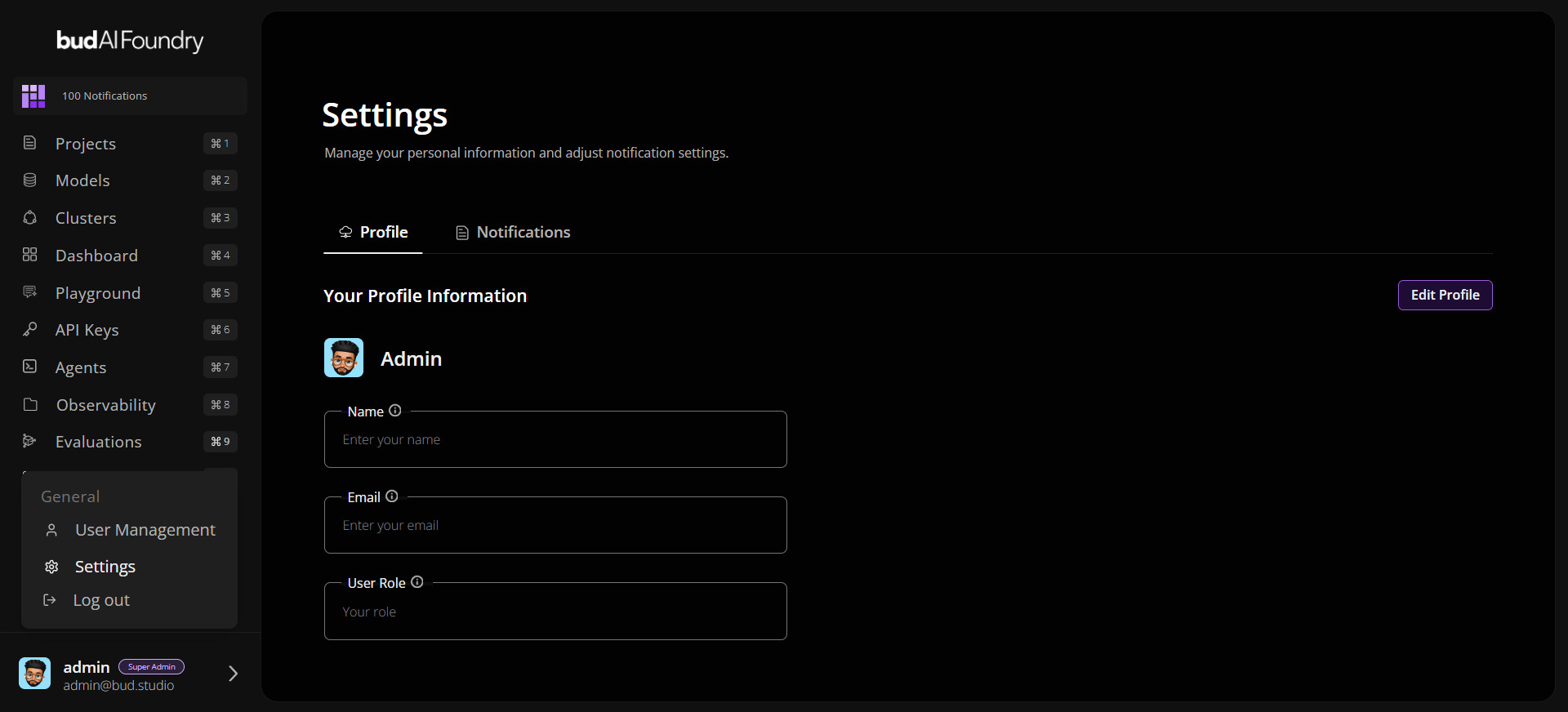 ## Profile Information
### Update Your Profile
Keep your profile information current:
**Email Address**
* Your primary email for login and notifications
* Contact an administrator if you need to change it
**Display Name**
* How your name appears to other users
* Update in the profile section
**Display Role**
* View your role (Admin, Developer, Tester, DevOps)
Some profile fields may be managed by your organization's administrator and cannot be changed directly. Contact your admin if you need to update these fields.
## Notification Preferences
### Email Notifications
Configure which email notifications you receive.
**To update preferences:**
1. Go to Account Settings
2. Click on "Notifications" tab
3. Toggle Email Notification types on/off
### In App Notifications
Configure which in app notifications you receive.
**To update preferences:**
1. Go to Account Settings
2. Click on "Notifications" tab
3. Toggle In App Notification types on/off
## Logout
To log out of your current session:
1. Click your profile icon in the top-right
2. Select "Log Out" from the dropdown
3. You'll be redirected to the login page
Always log out when using shared or public computers. For details about session management and security, see [Authentication](/user-management/authentication#session-management).
## Account Status
### Account Type
Your account type determines your access level:
* **CLIENT**: Standard user with project access
* **ADMIN**: Administrative privileges
To change your account type or request additional permissions, contact your organization administrator.
### Roles & Permissions
Your role defines what you can do on the platform:
* **Developer**: Create and manage models
* **DevOps**: Manage clusters and deployments
* **Tester**: Run evaluations and tests
* **Admin**: Full administrative access
See [Roles & Permissions](/user-management/roles-permissions) for detailed information about each role.
## Related Documentation
For more information about account security and authentication:
* [**Authentication**](/user-management/authentication) - Login, passwords, session management, and security
* [**User Activity**](/user-management/user-activity) - View your login history and activity
* [**Roles & Permissions**](/user-management/roles-permissions) - Detailed role information
## Getting Help
Need assistance with account settings?
* Contact your organization administrator
* Email support at [contact@bud.studio](mailto:contact@bud.studio)
* Check the [Authentication guide](/user-management/authentication) for security-related questions
## Profile Information
### Update Your Profile
Keep your profile information current:
**Email Address**
* Your primary email for login and notifications
* Contact an administrator if you need to change it
**Display Name**
* How your name appears to other users
* Update in the profile section
**Display Role**
* View your role (Admin, Developer, Tester, DevOps)
Some profile fields may be managed by your organization's administrator and cannot be changed directly. Contact your admin if you need to update these fields.
## Notification Preferences
### Email Notifications
Configure which email notifications you receive.
**To update preferences:**
1. Go to Account Settings
2. Click on "Notifications" tab
3. Toggle Email Notification types on/off
### In App Notifications
Configure which in app notifications you receive.
**To update preferences:**
1. Go to Account Settings
2. Click on "Notifications" tab
3. Toggle In App Notification types on/off
## Logout
To log out of your current session:
1. Click your profile icon in the top-right
2. Select "Log Out" from the dropdown
3. You'll be redirected to the login page
Always log out when using shared or public computers. For details about session management and security, see [Authentication](/user-management/authentication#session-management).
## Account Status
### Account Type
Your account type determines your access level:
* **CLIENT**: Standard user with project access
* **ADMIN**: Administrative privileges
To change your account type or request additional permissions, contact your organization administrator.
### Roles & Permissions
Your role defines what you can do on the platform:
* **Developer**: Create and manage models
* **DevOps**: Manage clusters and deployments
* **Tester**: Run evaluations and tests
* **Admin**: Full administrative access
See [Roles & Permissions](/user-management/roles-permissions) for detailed information about each role.
## Related Documentation
For more information about account security and authentication:
* [**Authentication**](/user-management/authentication) - Login, passwords, session management, and security
* [**User Activity**](/user-management/user-activity) - View your login history and activity
* [**Roles & Permissions**](/user-management/roles-permissions) - Detailed role information
## Getting Help
Need assistance with account settings?
* Contact your organization administrator
* Email support at [contact@bud.studio](mailto:contact@bud.studio)
* Check the [Authentication guide](/user-management/authentication) for security-related questions