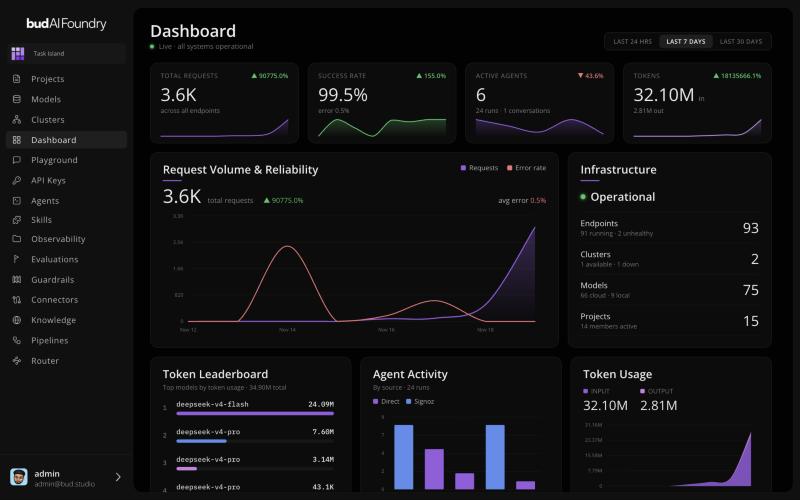
Bud AI Foundry has two web applications. The admin console is where your platform, model and agent teams work. The customer portal (The customer portal) is where the people who consume your models and agents get keys, try them and track usage. Each account can sign in to one of the two.
The admin console. The sidebar on the left reaches every area; the Dashboard shows traffic, reliability, infrastructure and token use at a glance.

The admin console. The sidebar on the left reaches every area; the Dashboard shows traffic, reliability, infrastructure and token use at a glance.

Sign in

  1. Open the console address you were given. You are taken to your organisation’s sign-in page (Keycloak or your company SSO).
  2. Sign in. You land on the Dashboard.
  • Which account types work: an Admin account signs in to this console. A Client account signs in to the customer portal.
  • If you were invited and see “Please finish setting up your account to continue”, complete the steps in your invitation email first.
  • Access restricted means your account is a client account: use Go to the customer portal.
  • To sign out, click your name at the bottom of the sidebar, then Log out. The same menu switches between Light mode and Dark mode.

The sidebar

The sidebar is the only navigation. Keyboard shortcuts in the Keys column are pressed together with ⌘ (Mac) or Ctrl (Windows and Linux). Select an item to open its page; the current page stays highlighted. Whether an item appears depends on your permissions, as set out below.
Items you have no permission for are hidden. The sidebar can be collapsed with Collapse sidebar and reopened with Expand sidebar.
The permission grid is described in Setting up your organisation. If a colleague cannot see a sidebar item that you can, their permissions, not a fault, are the reason.

The Task Island

The pill at the bottom of every page is the Task Island. Long jobs such as adding a model, deploying, onboarding a cluster, quantizing or benchmarking can be minimised while they run; the island shows their progress and notifies you when they finish. Click it to resume a minimised drawer, read or Clear all notifications, and open the Ask Bud chat panel, an assistant that answers questions about your clusters and deployments. What the island shows depends on state. While a job runs and you have minimised its drawer, a small card for that job appears with its progress. When a job finishes or fails, a notification appears for a few seconds and then collects under a count such as 3 Notifications. Jobs run on the server, so closing the browser tab does not stop them.
If a drawer you minimised seems to have vanished, look at the island: it is always there, and clicking the card reopens the drawer.

Platform modules

Platform lists optional platform features with an on/off switch each; expand a row to change its settings and click Save settings. Only a super admin can change them; everyone else sees the page read-only with the line “Only a super admin can change platform modules.” Each module carries a status badge: on, failed (the reason is shown in red), or a transitional turning on, updating or turning off. A module may also show an amber note under its description. Changes take effect after the transition completes; wait for the badge to settle before relying on the module.