
Before you begin
You need:- Access to the MCP Foundry dashboard.
- Permission to create tools, resources, and virtual servers in the target team.
- A safe HTTP API endpoint for the example tool, or an existing approved tool.
- An MCP-compatible client or the built-in Playground to test the result.
Tip: Use a non-production endpoint and non-sensitive content for your first server. Verify authorization and input schemas before exposing a production API to agents.
1. Create a tool
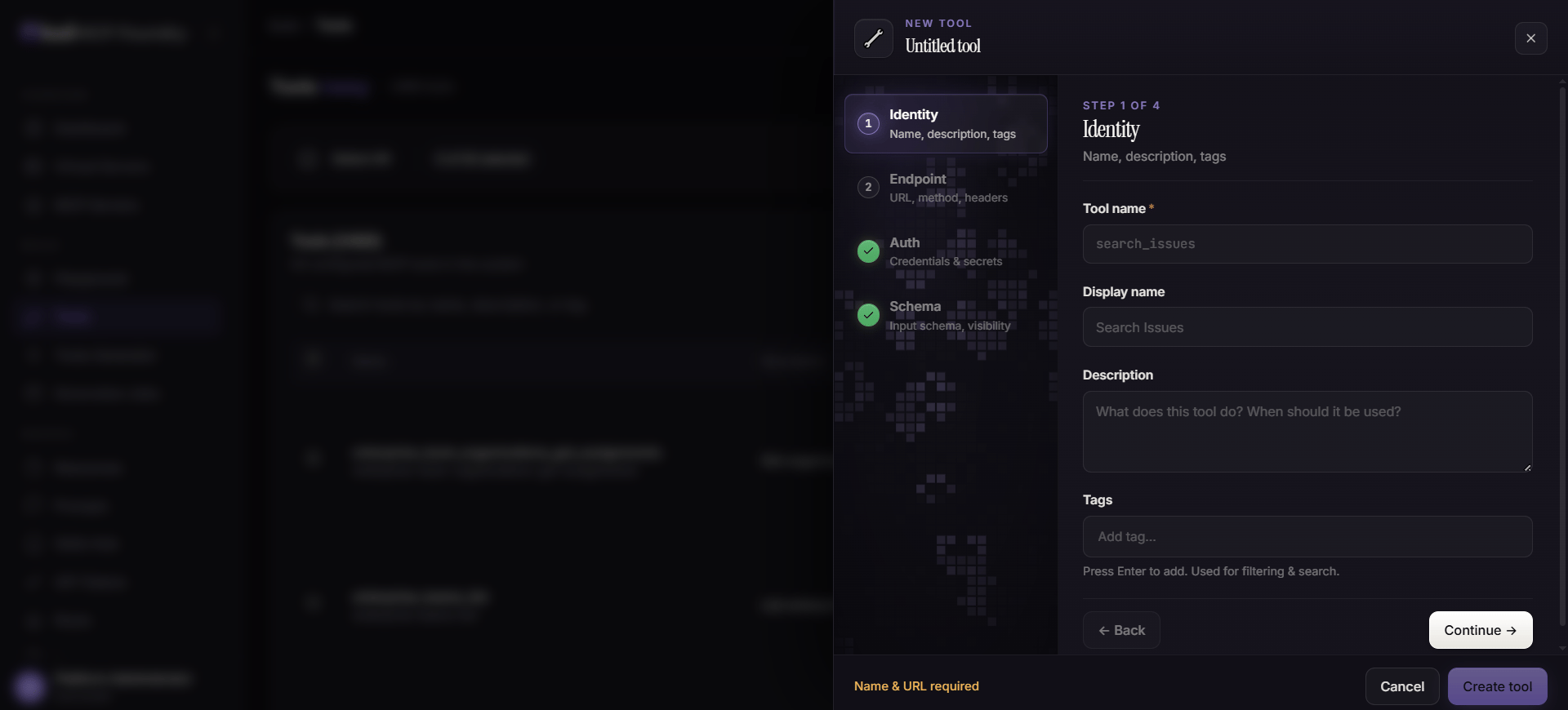
- In the dashboard, open Tools and select Add Tool.
- Enter a unique name, a human-readable display name, description, and optional tags.
- Configure the HTTP endpoint, method, required headers, and the authentication settings for the backend API.
- Define a JSON Schema for the arguments the agent may send. Make required fields explicit and keep the schema as narrow as practical.
- Select the appropriate visibility and save the tool.
2. Add a resource
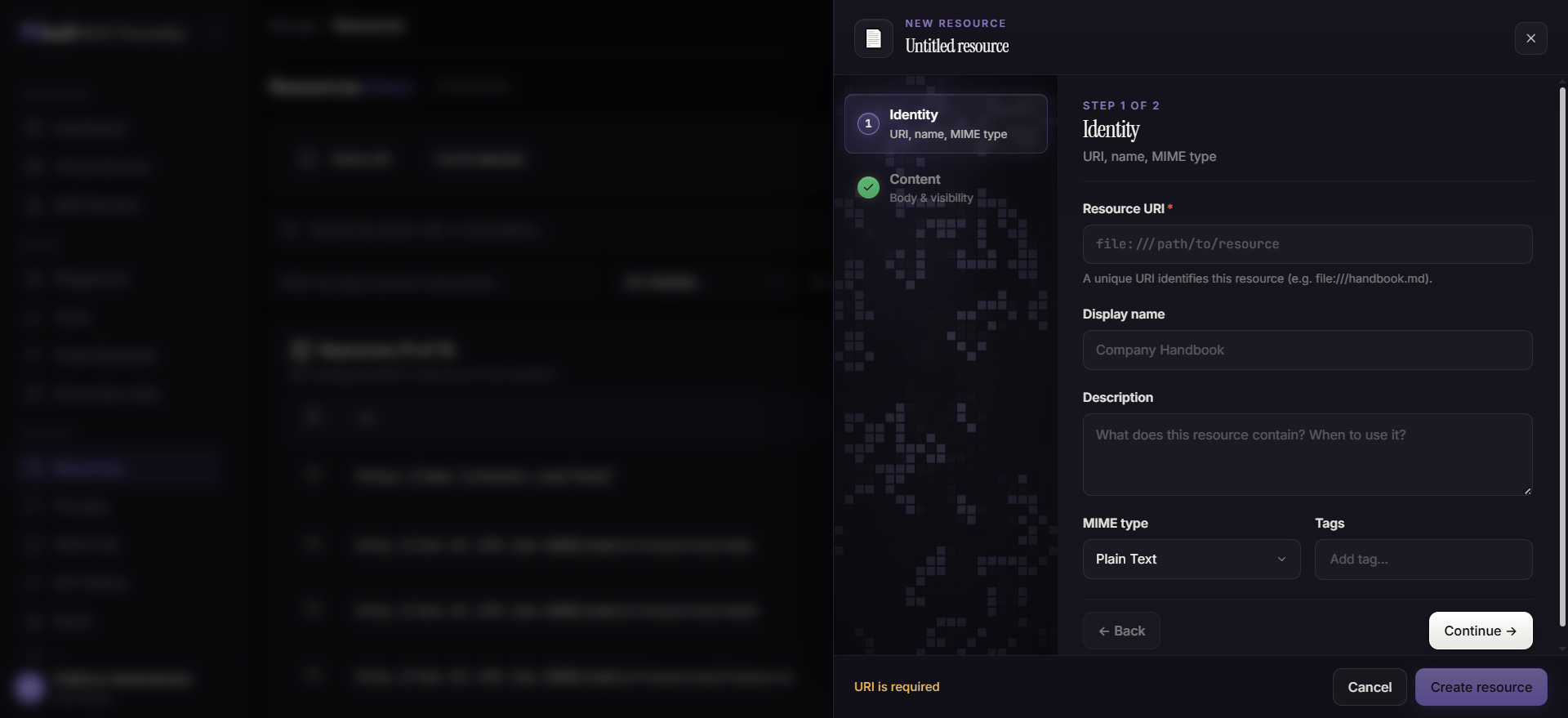
- Open Resources and select Add Resource.
- Provide a resource URL, or enter inline content when the material is not hosted elsewhere.
- Add a name, description, resource type, tags, ownership, and visibility.
- Save the resource.
3. Create a virtual server
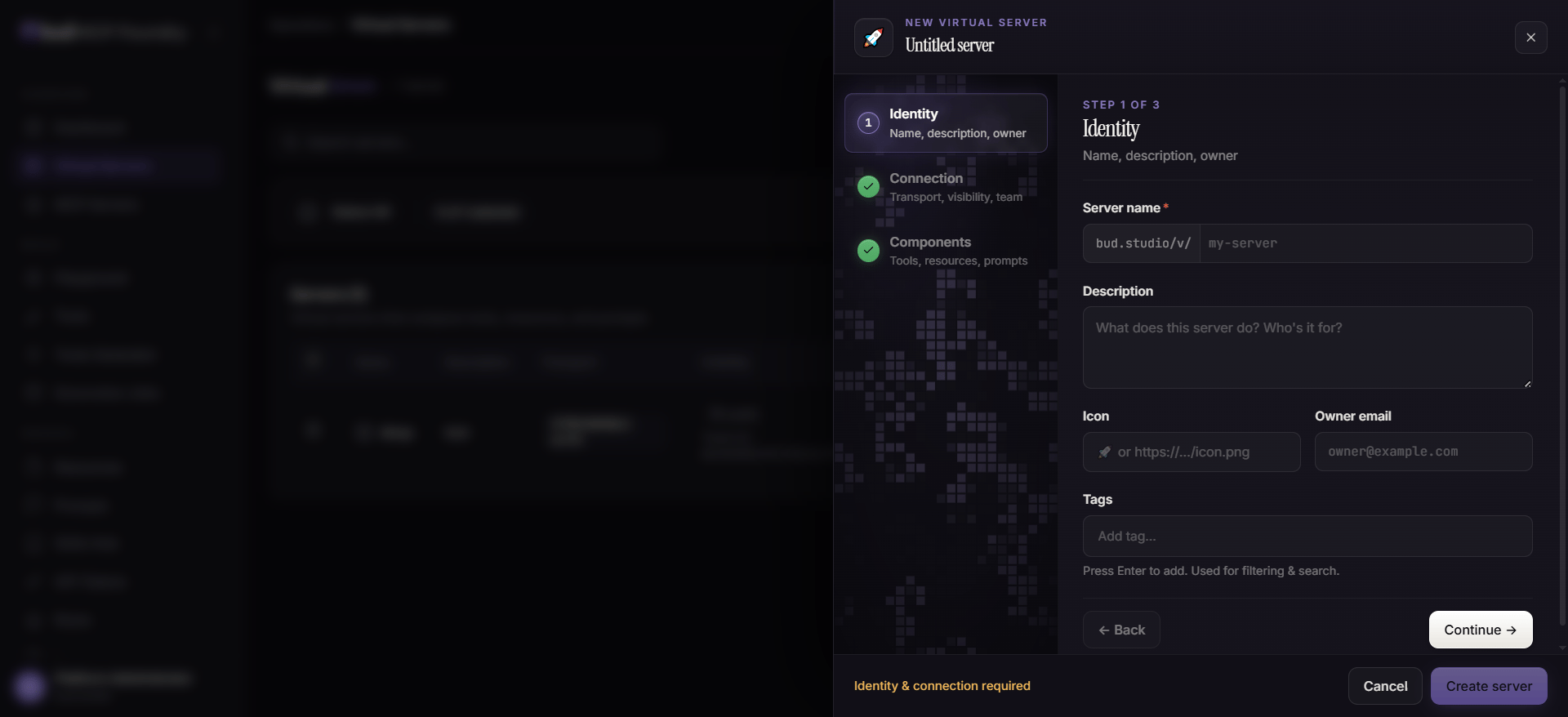
- Open Virtual Servers and select Create Server.
- Give the server a clear name and description, such as
support-assistant-sandbox. - Configure how MCP clients connect and choose a visibility appropriate to the environment.
- Attach the tool and resource created in the previous steps.
- Optionally attach an existing prompt or skill.
- Create or publish the server.
4. Test the published server
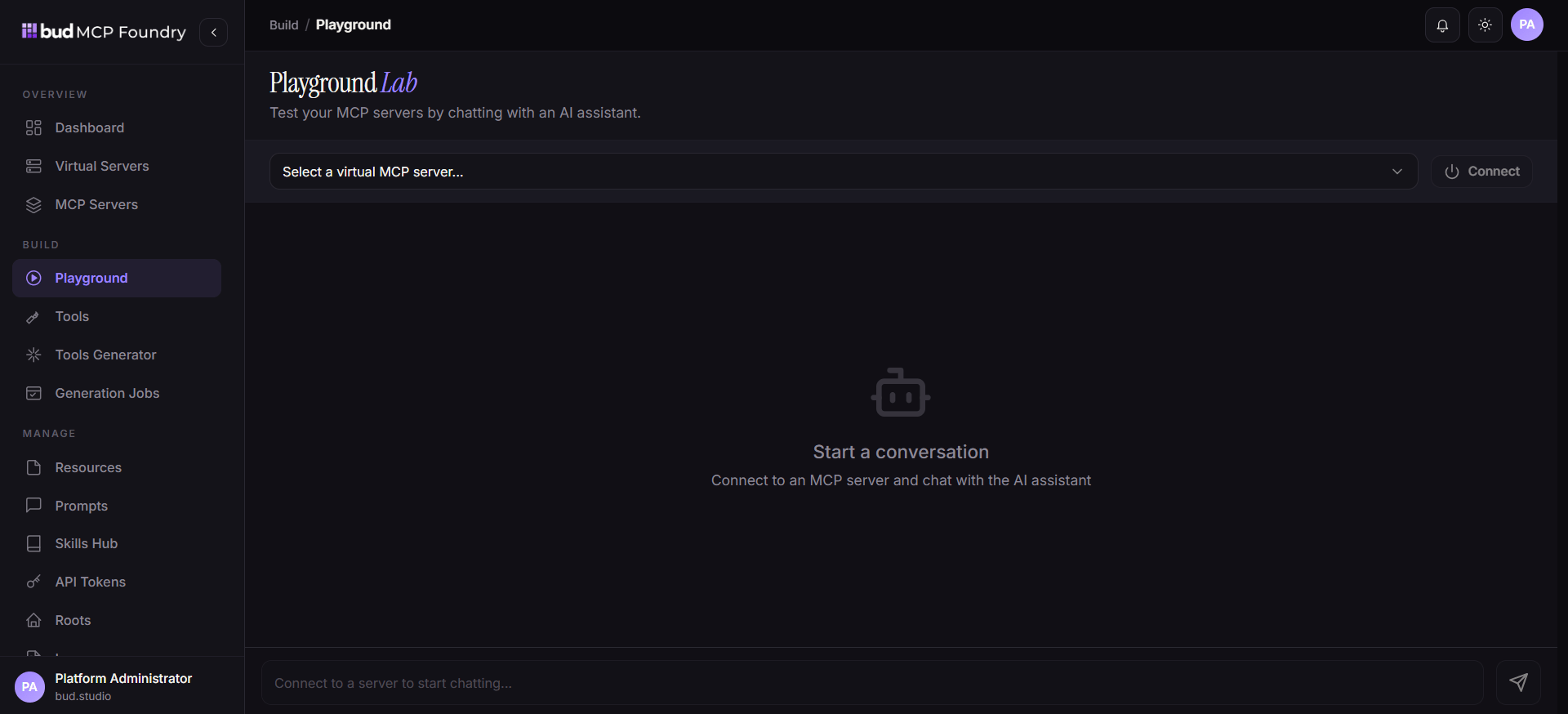
- Open Playground.
- Select the virtual server from the MCP server list.
- Confirm the expected tool, resource, prompt, and skill entries are available.
- Invoke the tool with a permitted test value and confirm the result.
- Read the resource and verify that only the intended content is returned.
- Review Logs and the dashboard for the request outcome, latency, and errors.
What to do next
- Add task instructions by creating a prompt or skill.
- Connect a third-party or self-hosted server through the MCP Servers area.
- Review concepts to plan visibility, teams, and composition boundaries.
- See troubleshooting if the server is not discoverable or a call fails.