
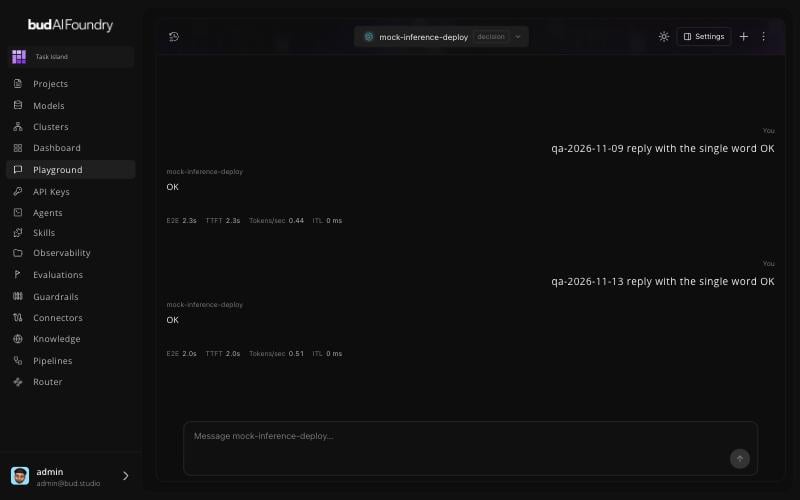
The Playground, showing time to first token, throughput and latency under each reply.
Compare models side by side
Who: anyone who can see a deployment or agent Where: Playground → Choose an agent or model- Open Playground and use Choose an agent or model to pick one. The list has two tabs, Agents and Models, and a Search agents and models box. The filter button (hover text Filter by what it can do) cycles through All, Voice-capable, Text-capable and Decisions. “No matches” means nothing fits the search and filter.
- Type a message and send it. Each reply shows its timing figures.
- Click New chat window to add a pane and load a second model, and as many more as you need. Each pane keeps its own history. Send the same prompt in each to compare.
- Open Settings in a pane to change its settings (table below).
- Size switches between Panel, Wide, Sidebar and Full screen. Expand and Collapse resize the pane. Chat history lists earlier conversations. New conversation asks “Start a new conversation? This clears the current chat” (New chat). The Options menu has Close and Delete Chat.
Pane settings
The Settings panel is a set of sections. A settings change applies to the next message you send in that pane.Try an agent
Pick an agent instead of a model (the Agents tab). The side panel becomes Run detail and shows each tool call, tool result and reasoning step as it happens. If the agent has required variables you are asked for them. Depending on the agent, the input bar offers typing, talking, images and documents; Start a voice call talks to a voice agent.Try voice and decision models
- Realtime: choose a voice, Connect, then Start microphone (it becomes Stop microphone). Allow microphone access in your browser when asked.
- Text-to-speech: enter Text to speak, choose a Voice and Format, and click Synthesise.
- Speech-to-text: Attach audio file, optionally Translate to English, and click Transcribe.
- Decisions: switch Playground mode from Chat to Decisions and ask a Yes / No, Choice or Score question. Build it with the form, or edit the raw
POST /v1/decisionsrequest as JSON; each answer card shows the answer, its confidence and a bar per possible answer. If the gateway rejects a question, its message and the field it names are shown under that question.