
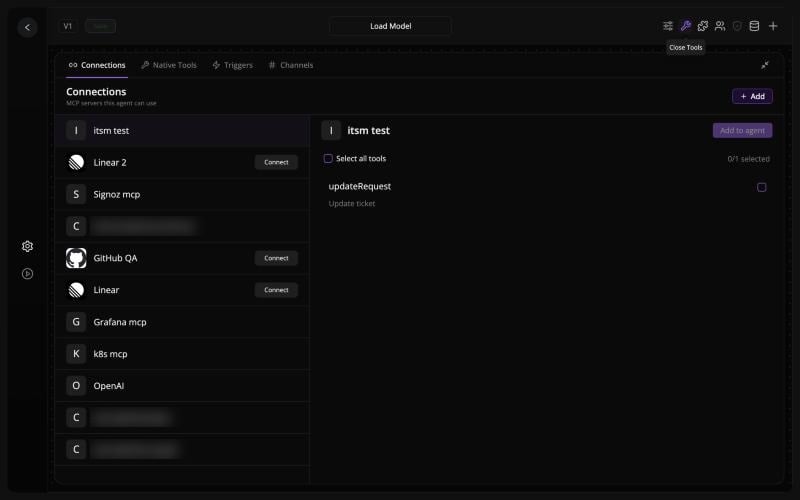
Tools → Connections in the agent builder. Pick a connection on the left, then choose which of its tools the agent may use.
How tools reach an agent
A tool is something the agent can call during a run: search the web, run code, read a GitHub issue, call another agent. Tools are attached to an agent version. When you create a new version it starts with the tools of the version it was copied from, and you can change them without touching older versions.
Tools run with the permissions of the connection that backs them. A connector authorised with a personal token acts as that person. Prefer a service account with the narrowest scope that works.
Add a native tool
Where: Agent builder → Tools → Native Tools- Open Tools → Native Tools. Tools you have not added are under Tool List; those you have are under Connected Tools. Use the search box to filter.
- Click a tool, set its options and click Connect. It moves to Connected Tools.
- To change a connected tool, open it, edit the options and click Save. Disconnect removes it.
Code Interpreter options
Connect a ready-made connector
Who: Model manage permission on the agent’s project Where: Agent builder → Tools → Connections → + Add- Choose MCP Server on Select connection type. Then, on Select an MCP source, search the connectors, pick one, and click Configure Connector.
- Enter a Name for the connection and the credentials it asks for under Enter Credential Details. Each connector shows its own fields.
- Click Connect. OAuth connectors send you to the provider to approve access, then back to Bud.
- Back on Connections, expand the connection, tick the tools this agent needs (or Select all tools), and click Add to agent.
- Add to agent replaces the connection’s tool list for this agent with exactly what is ticked. Tick the full set you want each time.
- Remove detaches the connection from this agent only. The connection itself stays under Connectors and other agents keep using it.
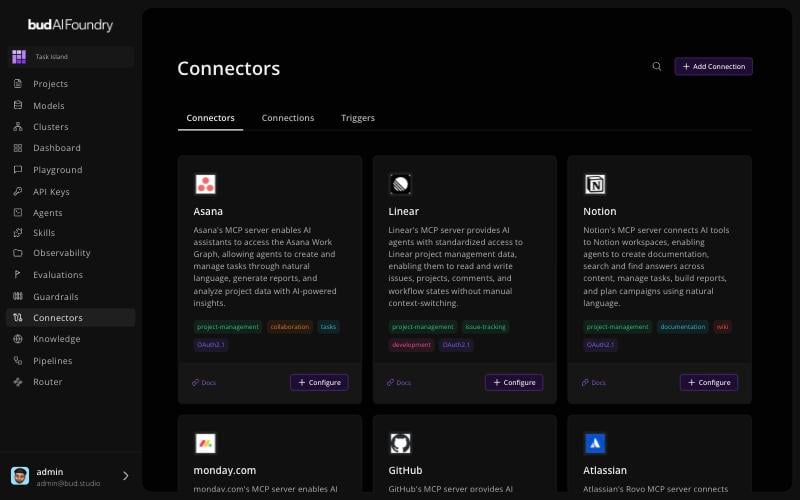
The connector registry. Each connector shows how it authenticates; click Configure to connect it.
Connect your own MCP server
In the same drawer choose MCP Server → Custom MCP server → Connect MCP.
Click Connect, then select the tools as above.
Generate tools from an API
Who: Model manage permission Where: Agent builder → Tools → Connections → + Add → API- Choose API on Select connection type, then a source on Select a source: OpenAPI URL (a link to a spec file, or a docs page that links to one) or OpenAPI file (JSON or YAML, up to 20 MB). Where your installation enables it you can also choose API docs URL (the platform crawls a documentation site) or API docs file (HTML, Markdown, text or PDF, up to 50 MB).
- Fill in the details below.
- Choose the API’s authentication.
- Click Generate tools. The platform reads the specification in the background. Review the list, untick anything the agent should not have, and click Add N tools.
Each generated tool is labelled with its HTTP method (GET, POST, DELETE and so on) so you can see which ones change data. Untick write and delete tools if the agent only needs to read.
Connections can also be managed outside any agent, under Connectors.