
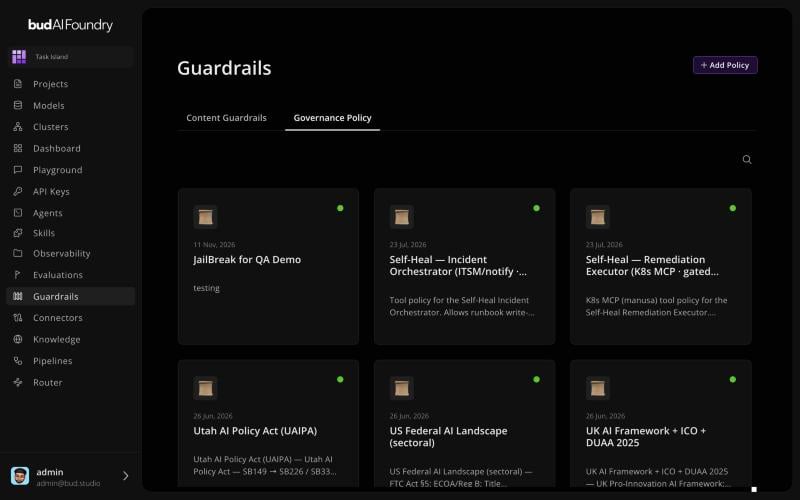
Guardrails → Governance Policy lists the policies agents can be held to.
How governance works
A policy is a set of rules. A policy is defined once, deployed to a project, and then attached to individual agents. Each attachment (a binding) has its own mode, scope and approvers, so the same policy can enforce on one agent and only observe on another.When rules run
Rules run at fixed points in an agent’s run. Each rule names the points it runs at under Run when:What a rule can decide
How verdicts combine
- Within one policy, the policy’s When rules conflict setting picks the winner among the rules that match.
- Across policies on the same agent, each policy gives its own verdict for the moment and the strictest one wins, in this order: Deny, then Escalate, then Redact, then Notify, then Allow. Redact and Notify do not compete: they are duties that apply only if the action goes ahead. If any policy denies or escalates, redactions and notifications from the others are dropped.
- If several policies escalate at once, they are merged into one approval request. When tied, the policy attached first sets the wording shown.
- A standing Allow Always grant can turn an Escalate into an Allow for the same action in the same session. It never overrides a Deny, a Redact or a Notify.
Create a governance policy
Who: someone with permission to manage guardrails Where: Guardrails → Governance Policy → + Add Policy- Fill in the policy fields below.
- Under Rules, click Add checks to add a rule that uses Bud Guardrails and scanners, or Add patterns to add a rule that matches text patterns. Rules are collapsible; each has an on/off switch and a delete icon.
- Fill in each rule (table below).
- Click Save Policy.
- Open the policy from the list. Where it is active, a Deploy button appears; click it and choose the project. Agents in that project can then attach it. Edit and Delete are in the policy’s ⋯ menu.
Policy fields
Rule fields
Attach a policy to an agent, and try it in shadow mode first
Who: Model manage permission. The agent must be saved first. Where: Agent builder → Governance → Add policy- Click Add policy, search for the policy and click Attach. Only policies deployed to this agent’s project are listed. If the list is empty, deploy a policy in Guardrails first.
- The new attachment is selected. Set its Mode to Shadow. It records what it would have done and never blocks.
- Set Applies to, add any When conditions, and set the escalation approvers if the policy escalates (table below).
- After you have watched real traffic, switch the mode to Active to enforce.
There is no switch that turns off all governance on an installation. To stop a policy affecting one agent, set its mode to Off or detach it. Governance policies on an agent are enforced from the moment they are Active; there is no publish step that checks them first.