
Before You Begin
Make sure you have:- Access to Bud Admin.
- Permission to manage connectors for the target project or organization.
- Provider credentials, API keys, headers, or OAuth client setup required by the connector.
- An agent that should use the connector tools.
Step 1: Find the Connector
- Open Connectors.
- Search for the provider or tool server.
- Select the connector card.
- Review its authentication type and credential fields.
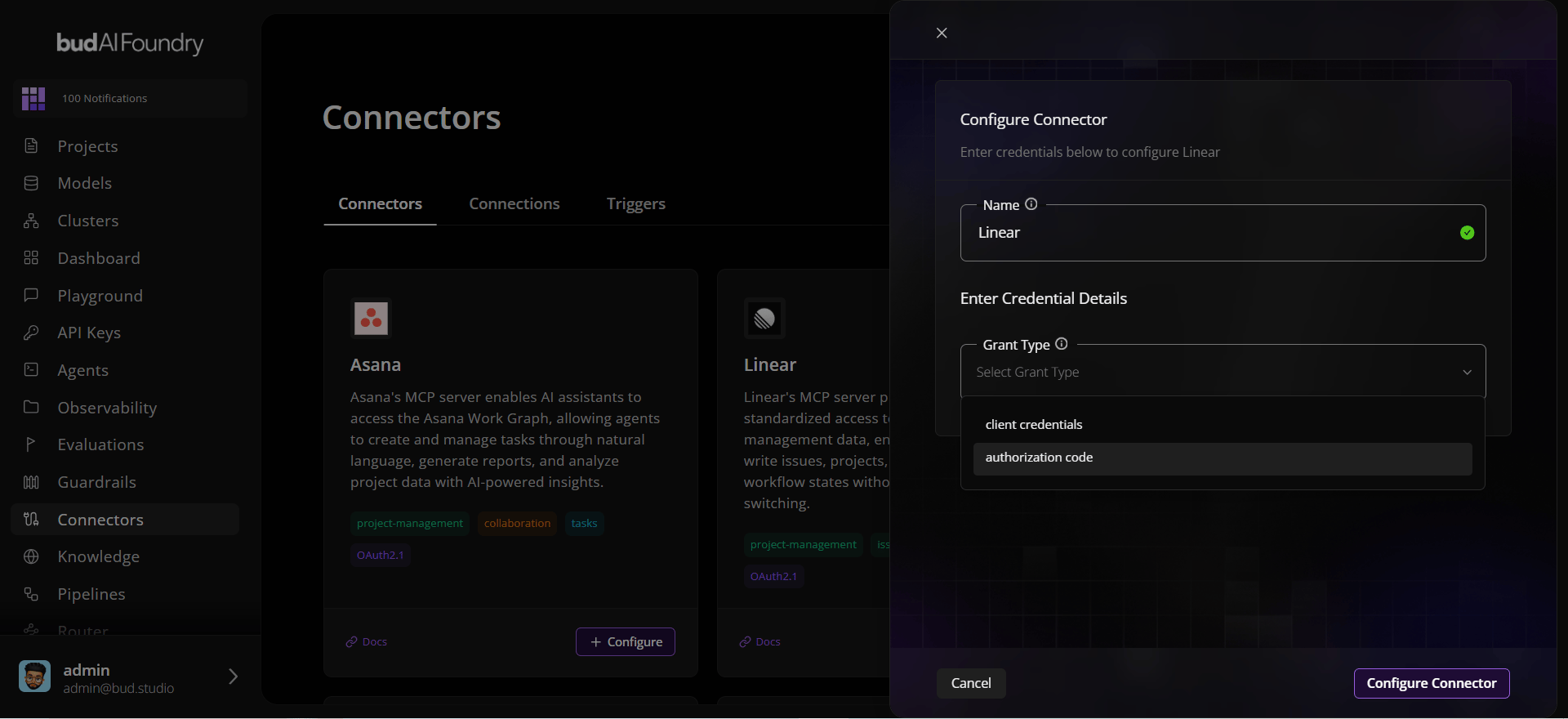
Step 2: Configure Credentials
Credential fields come from the connector schema. Bud Admin supports standard text, password, URL, dropdown, hidden, and key-value-array field types. Enter the required values and verify optional fields such as base URL, headers, or custom names.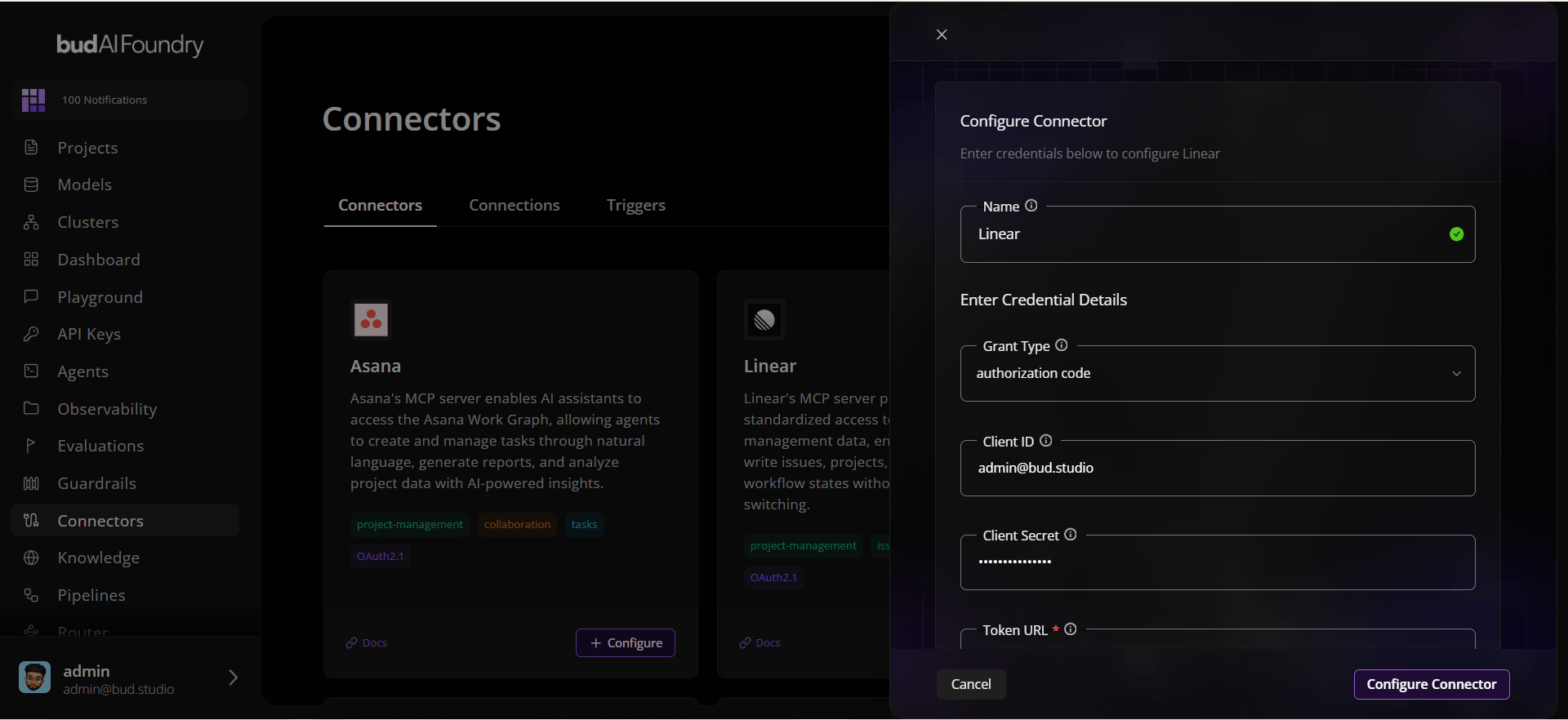
Step 3: Choose Agent Visibility
Set the connection scope before saving:- Use Global for shared enterprise systems.
- Use Project for restricted project data.
- Keep narrow scopes during testing, then widen later from the connection settings.
Step 4: Save the Gateway
Click Save or Connect. Bud Admin sends the connector ID, credentials, optional name, and scope to the connector gateway API. A successful save creates a reusable gateway and moves the connection to the Connections tab.Step 5: Complete OAuth If Required
For OAuth connectors:- Open the connection from the agent builder.
- Click Connect.
- Finish provider authorization.
- Return to the original Bud Admin page.
- Confirm the connection shows an authorized state.
Step 6: Fetch and Attach Tools
- Expand the connection in the agent builder.
- Load or refresh the tool list.
- Select only the tools the agent needs.
- Click Add to agent.
Step 7: Validate the Agent
Run a test conversation that should call the connected tool. Confirm that:- The agent can see the selected tool.
- The tool call succeeds.
- The response uses the intended external data or action.
- The tool set remains scoped to the intended project.
Success Checklist
- The connector appears under configured Connections.
- OAuth status is connected when required.
- Tools load from the gateway.
- The correct tool IDs are attached to the agent.
- Project or global visibility matches your governance requirement.