
Before you begin
Gather the information appropriate to the server type:
Also identify the owning team, the intended clients, and the smallest set of capabilities required for the use case.
Security note: Store and manage credentials according to your organization’s secret-handling policy. Do not use a broad administrator credential when a server-specific, least-privileged credential is available.
1. Select the server source
- Open MCP Servers in the MCP Foundry dashboard.
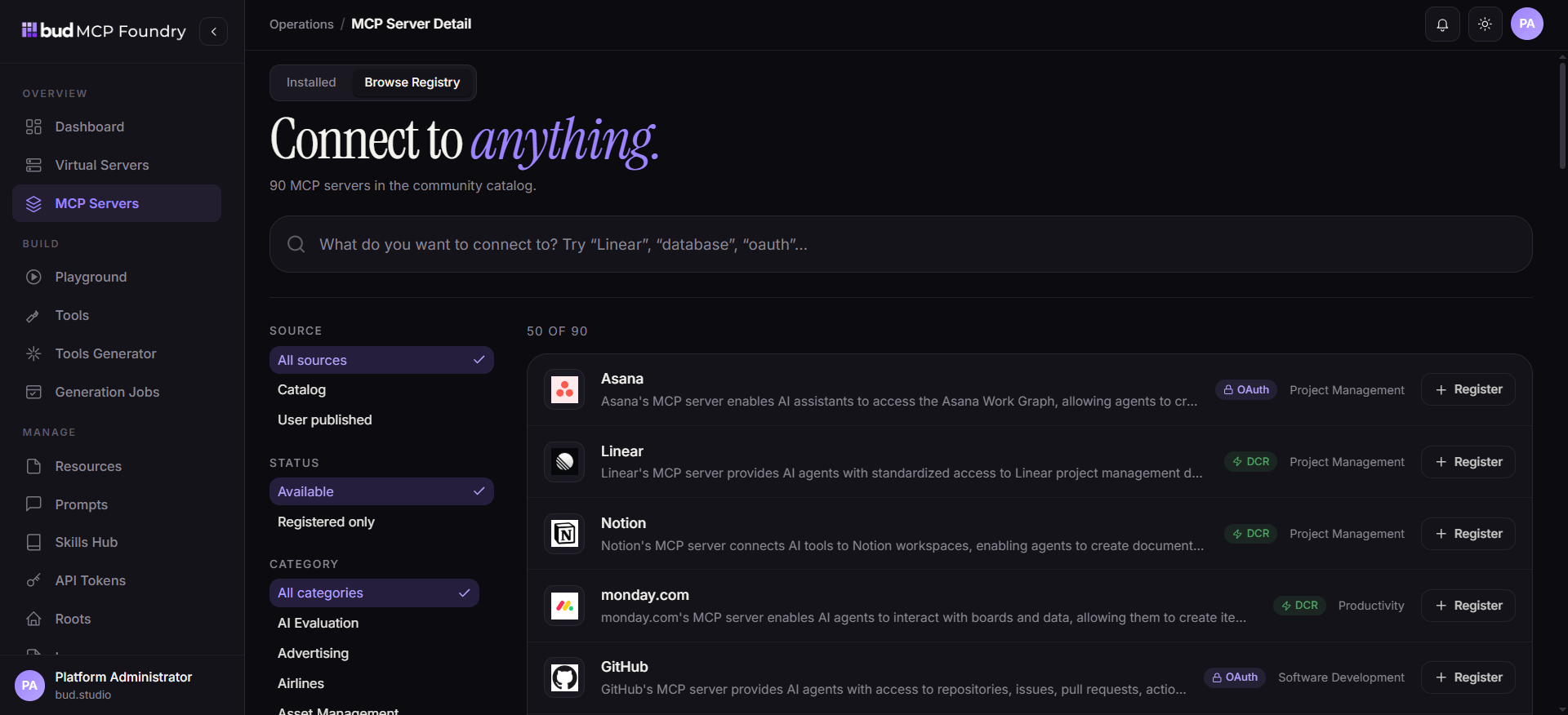
- To use a pre-integrated option, select Browse Registry and choose the server that matches your use case.
- To connect an existing deployment, add the server and select its transport or connection type.
- To expose a command-line or packaged server, choose the deploy or wrapper workflow supported by your deployment.
2. Configure the connection
Provide the server address and select the transport that the server supports. Confirm that the address is reachable from the MCP Foundry deployment, not only from your local workstation. Check these items before continuing:- The URL uses the expected protocol and points to the intended environment.
- Network policy, DNS, proxy, and TLS configuration permit MCP Foundry to reach the server.
- The selected transport matches the server implementation.
- Timeouts are suitable for the server’s expected response time.
- For command-line workloads, required binaries and dependencies are available in the execution environment.
3. Configure authentication and access
Set the credentials or authentication method required by the connected server. Then establish its governance boundary:- Assign ownership to the responsible team.
- Choose visibility appropriate to the intended audience.
- Limit the credentials to the APIs, data, and actions required by the server.
- When filesystem access is relevant, configure Roots so the server can access only explicitly permitted directories.
- Use API Tokens for programmatic clients and rotate or revoke tokens according to policy.
4. Validate the connected catalog
After saving the connection, verify server health and inspect the catalog it provides.- Confirm the server reports as reachable or healthy.
- Review imported tools, resources, and prompts for names, descriptions, and expected scope.
- Exercise a safe, read-only capability where possible.
- Check that backend authentication behaves as expected.
- Review logs for connection failures, authorization errors, or protocol mismatches.
5. Publish approved capabilities through a virtual server
- Open Virtual Servers and create a new server or edit an existing one.
- Configure the client connection and visibility for the virtual server.
- Attach only the approved tools, resources, prompts, and skills supplied by the connected MCP server or local catalog.
- Save or publish the virtual server.
- Open Playground, select the virtual server, and confirm that clients see only the curated catalog.