
Create a reusable prompt
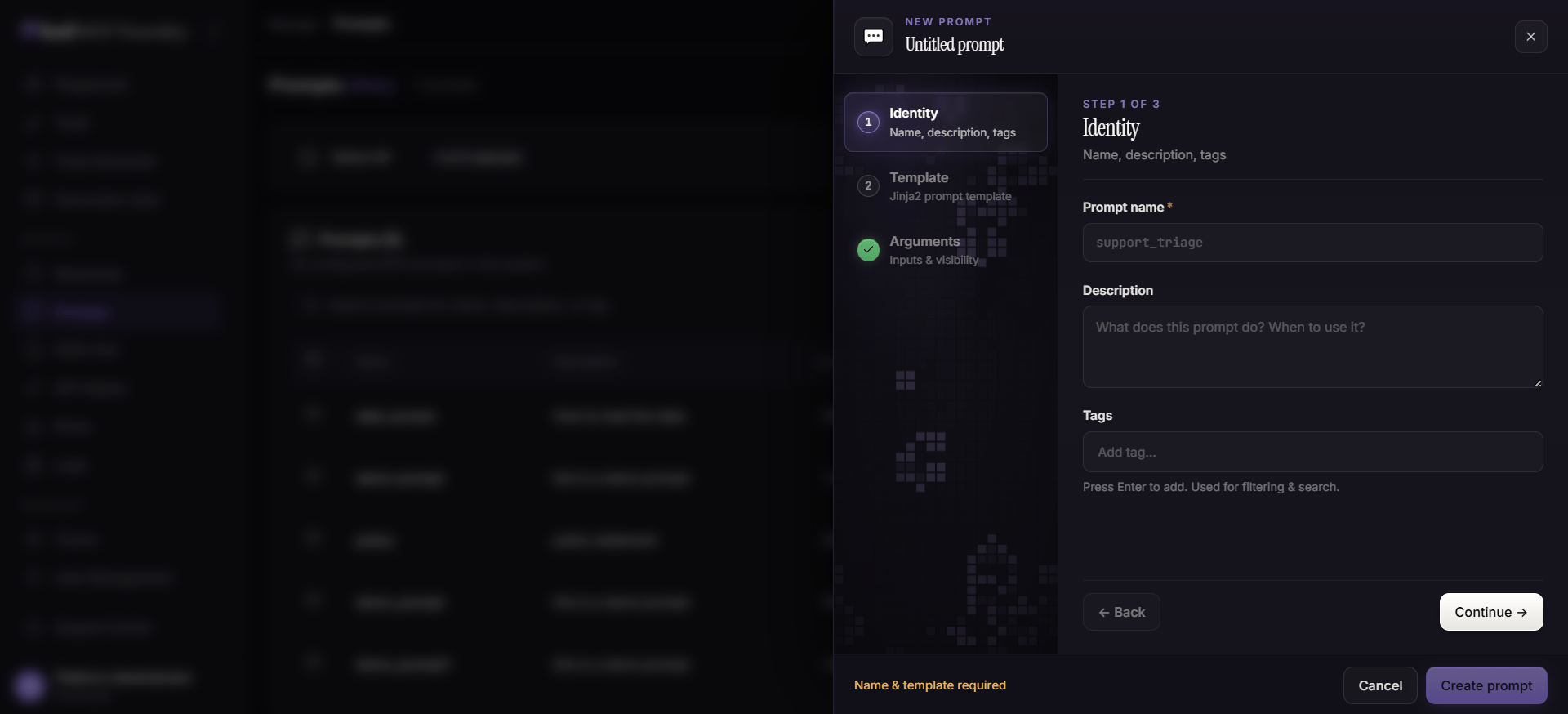
- Open Prompts in the MCP Foundry dashboard.
- Select Add Prompt.
- Enter a clear name and a short description explaining what the prompt does.
- Add tags to make the prompt easier to find and manage.
- Write the template using Jinja 2 syntax.
- Define the arguments the prompt expects.
- Set visibility and assign the prompt to its owning team.
- Save the prompt.
draft-compliant-customer-response, rather than the team or model that first created the prompt.
Design parameterized templates
Jinja 2 templating lets one prompt adapt to many requests. Use declared arguments for the values that vary between invocations, such as a request summary, audience, policy reference, or desired output format. Keep templates clear about:- The role and task the agent should perform.
- The context it must consider and the arguments that supply that context.
- Which tools to use, and when not to use them.
- Constraints, refusal conditions, and human-escalation requirements.
- The exact response structure, fields, and tone expected by downstream users or systems.
Set ownership and visibility
Assign a team when the prompt is shared work so that changes, reviews, and operational ownership do not depend on one person. Select a visibility level that matches the audience and the sensitivity of the instructions and embedded examples.Security note: Keep secrets, credentials, and sensitive customer data out of prompt templates. Visibility controls help govern discovery, but they do not replace safe handling of data supplied through prompt arguments.
Publish through a virtual server
A saved prompt becomes usable by connected agents only after it is attached to a virtual server.- Open Virtual Servers and select the target server.
- Attach the approved prompt to the server’s capability catalog.
- Save or publish the virtual server.
- Connect an authorized MCP client and verify that the prompt appears under its expected name.
- Invoke the prompt with representative arguments and check the rendered instructions and output behavior.